

Contact support
Reach the Komodor team whichever way suits the question:Chat
The chat launcher at the bottom of this page opens a conversation with Support Engineering.
Best for a quick question, or when you are mid-incident.
Open a ticket
The support request form. Best when you have logs or screenshots to attach, or the detail
below to hand.
support@komodor.com reaches the same queue as the form, and is the one to use if you would
rather just write.Your Komodor contact
The person or channel that onboarded your team, if you have one. You do not need to find them
to get help.
- Troubleshooting an issue you have run into.
- Account, access, and membership questions.
- Account-level data export or deletion requests.
- Enabling a module that is off for your account.
- Raising an adjustable limit.
- Configuring an embedding provider so knowledge search can index and retrieve.
- Deployment questions about where agents and the control plane run.
Explore troubleshooting resources
These resources may help you resolve common issues. If you need assistance, we are here to help.Troubleshooting
Offline agents,
401 responses, empty knowledge search, triggers that do not fire, failing
runs.Limits & quotas
Whether you have hit a cap. If agent creation returns a
409 error, check the response message
and the Limits & quotas page for guidance.The run's own evidence
A failing run records what it received, which tools it called, and how each call ended.
What to include in a report
Sharing a few details helps our team understand the issue and investigate. Include any of the following details you have available. You can still contact us if you cannot find them.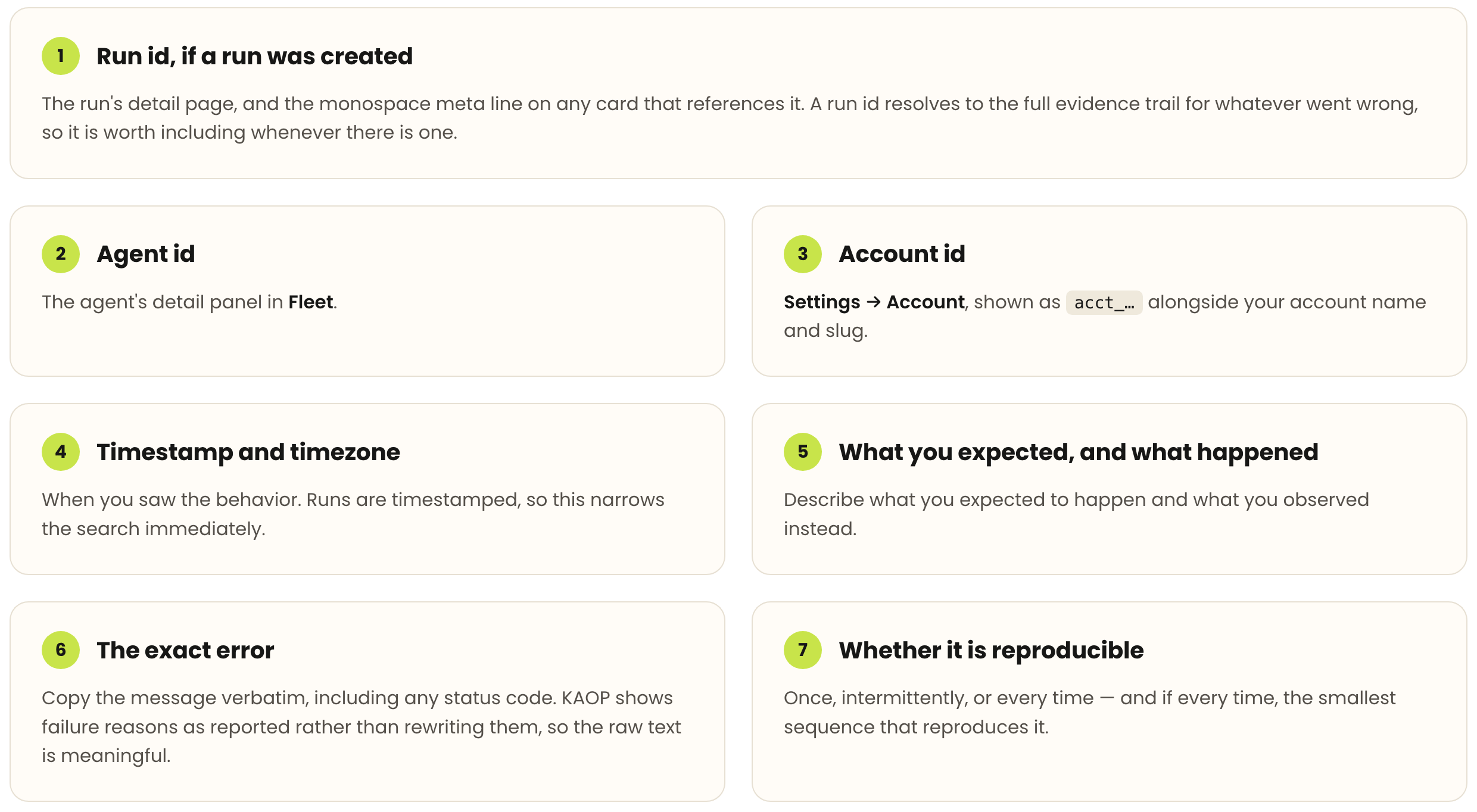
Common support scenarios
A run produced the wrong answer
A run produced the wrong answer
Send the run id and say what the right answer would have been. A wrong answer is a quality
question, not an availability one — grading it under
Evaluations captures the judgment durably and gives
the report something concrete to point at.
An agent will not come online
An agent will not come online
The offline-agent section of Troubleshooting covers the common
causes: the worker process, its outbound access to the control plane, its token, and its agent
id. If none of those explain it, send the agent id and the worker’s own startup logs.
A tool or integration call keeps failing
A tool or integration call keeps failing
Send the run id and the name of the integration. The run’s evidence records the failing tool
span with the upstream error, which usually identifies whether the problem is the credential,
the permission, or the upstream system.
Cost looks wrong
Cost looks wrong
Say which figure looks wrong and over what window. Spend is built from what each run reports, so
the answer is often that some runs carry no usage metadata — see
Agent spend attribution for how a run’s
cost is classified.
A permission decision surprised you
A permission decision surprised you
Send the actor, the action, and the resource. Access decisions are recorded, so a denial that
looks wrong can be traced to the rule that produced it — see
Audit log.
Request configuration changes
Some things are configuration rather than defects, and they are handled the same way — through any of the routes above:- A higher limit. Several caps are adjustable per account. For a limit increase, include the limit you would like adjusted and your use case, if known. See Limits & quotas for the enforced caps.
- A module turned on. Module enablement is per account; see Modules → Overview for what is available.
- An embedding provider. Semantic search over your knowledge base needs one configured for your deployment.
Next steps
Troubleshooting
The common failures, with the checks that resolve them.
Limits & quotas
The enforced caps and what happens at each one.
What's new
Whether the behavior you are seeing changed recently.
Runs & evidence
How to read the trail a run leaves behind.